


Junk Eraser - Storage Manager
4.3151.00 Reviews
App Specs
- Version
- 1.1.1
- Updated On
- License
- Free
- Downloads
- 5,000,000+
- Developer
- FRODO VENTURES LIMITED
- Categories
- Tools
- Platform
- Android
Screenshots
 Analysis by AppCompare
When a phone starts warning that storage is nearly full, it is tempting to tap the first cleaning button you see. I’d pause for a moment before doing that. A cleanup tool is most useful when you know what it is asking to remove and have checked that important photos, downloads, and app data are safe. Junk Eraser - Storage Manager is a free tools app from FRODO VENTURES LIMITED, and its focus is helping users deal with accumulated cache and storage clutter. I’d treat it as a convenience for reviewing a phone’s space, not as a substitute for understanding what is taking it up.
Where cleanup tools can feel confusing
The common sticking point with a storage cleaner is not finding the scan button; it is deciding what to do when the scan finishes. “Junk” can sound like a promise that every item identified is harmless, but I recommend reading the labels and selection details before confirming a cleanup. Cache often consists of temporary files an app can recreate, while other stored information may affect how an app behaves or what it keeps available offline.
That distinction matters most when space is tight and you are in a hurry. If you are about to travel, for example, clearing data used by a map or media app could mean having to download content again. I would run a scan when I have a moment to review the results, rather than treating the tool as an emergency button to press without looking.
Setup checks before the first scan
Before using a cleaner, I check the phone’s own storage settings so I have a point of comparison. That quick look helps answer a practical question: is the problem a large app, a pile of downloads, photos and videos, or temporary files? If one video folder is taking most of the room, removing a little cache may not make a noticeable difference. A cleaner is more useful when the kind of clutter it finds matches the problem you are trying to solve.
I also make sure the phone has finished any important downloads or backups before I start tidying. That is a cautious habit rather than a special requirement of this app: it gives me a chance to check that the files I care about are where I expect them to be. If the app asks me to review items, I take that step instead of assuming that every suggested deletion is the right one for my particular phone.
A calmer way to recover space
My preferred workflow is to check available storage, scan, review the proposed cleanup, and then check storage again. I would not run repeated scans back-to-back just to chase a bigger-looking result. Temporary files can return as apps are used, so a later scan may find more cache without that meaning the previous cleanup failed. The useful question is whether the phone has enough room for what you need next.
For an everyday example, imagine you want to record a family event but your phone says it is running low on space. I would first see whether an old download or an unusually large file is the real culprit, then use Junk Eraser to review cache-related clutter. Afterward, I would confirm that the recording can start and that the photos or files I intended to keep are still available. This small check makes the cleanup feel deliberate instead of risky.
Worth Reading Before You Choose

Flipboard Shows What News Apps Must Do Beyond the Feed

Switching to Android Auto Means Rethinking Your Driving Routine

Google Calendar Makes a Crowded Week Easier to Manage

Ludo King Makes the Most of the Minutes Between Plans

Baby Panda World Brings Quick Play to Modern Phones, but Its Game Library Feels Busy

ESPN’s Live Game View Makes Following Close Games Easier
When the app may not be the cause
A cleaner cannot fix every storage problem. If most of your space is occupied by videos, large games, offline music, or documents you have chosen to keep, deleting temporary files may only make a modest difference. In that situation, the phone’s built-in storage view is often the better place to decide what to move, back up, or remove. I would avoid deleting personal files simply because a device is full; first decide whether you have another safe copy.
There is also a difference between storage and performance. A phone that feels slow may be dealing with several things besides limited space, so I would not expect a cleanup app to resolve every lag or battery concern. If the storage figure looks healthy but the phone still behaves oddly, checking the individual app or the device’s own settings is a more sensible next step than repeatedly cleaning.
Getting Started with Junk Eraser
First things first, installing Junk Eraser is a breeze. It’s available on both Android and iOS, so no worries about compatibility. Once you’ve got it on your device, it greets you with a clean, user-friendly interface. Seriously, even my grandma could navigate through it without batting an eyelash!
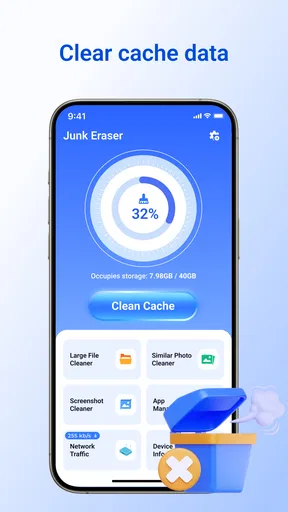
The home screen is straightforward, with a big button inviting you to scan for junk files. I hit that button faster than I hit snooze on a Monday morning. And bam! Within seconds, the app starts working its magic, identifying all the unnecessary files hogging your storage.
Features That Stand Out
Now, let’s dive into some of the features that make this app a keeper. First off, the junk file cleaning is top-notch. It doesn’t just remove the obvious stuff; it digs deep, finding those hidden cache files and residual data that you didn’t even know existed.
For a practical check, I’d compare the result with the phone’s own storage screen before deciding how often to clean. If I have just cleared a few apps’ temporary files, I would not assume that another immediate scan needs to be acted on. It is more useful to clean when storage pressure is real, then let the phone and its apps rebuild whatever temporary material they need during normal use.
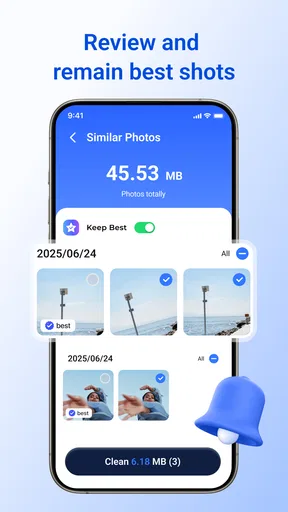
Another feature I love is the photo management. The app scans your photo gallery for duplicates and similar images. It even suggests which ones to keep based on quality and size. Trust me, it’s like having a personal assistant for your gallery.
Even with suggestions, I would treat photo cleanup as a review task rather than an automatic purge. Similar images can be different moments, and the slightly smaller file is not always the one I want to keep. I’d open the candidates, compare them at full size, and make sure a favorite is not being removed just because another shot looks sharper. That extra care is especially worthwhile for photos that are not backed up elsewhere.
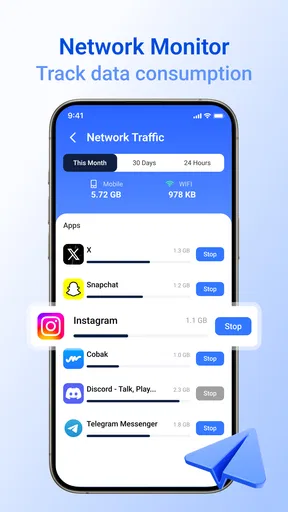
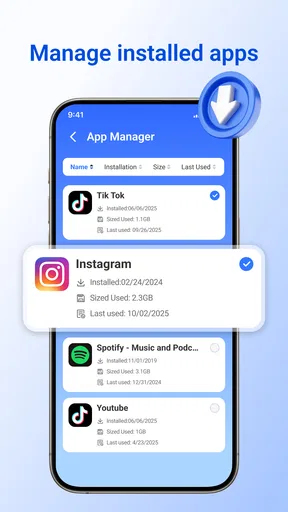
But wait, there’s more! The app manager feature helps you identify apps you haven’t used in ages. It’s a great way to declutter your phone and free up even more space. Plus, the app offers a real-time monitoring system, so you can keep an eye on your storage usage and avoid hitting that dreaded full storage notification.
When deciding whether to remove an app, I would think beyond how recently I opened it. A travel, banking, or work app might be used rarely but still matter when needed, and removing it can mean setting it up again later. An app manager is most helpful as a prompt to inspect forgotten installations, not as a reason to uninstall anything without considering saved information or future use.
Performance and Usability
So, how does it perform? In a word: brilliantly. The scans are quick, and I didn’t experience any lags or crashes. The app runs smoothly in the background, and I barely noticed it was there. It also doesn’t drain your battery, which is a huge plus in my book.
For anyone wondering whether a cleaner should replace the phone’s built-in tools, I see them as serving different purposes. Device settings are usually the clearest place to inspect storage categories and manage individual files. Junk Eraser is aimed at making a cleanup workflow more approachable, especially for someone who would rather start with a scan than hunt through several settings screens. If you already know exactly which large files to remove, the built-in tools may be the more direct option.
Usability-wise, Junk Eraser is as intuitive as it gets. The app guides you through every step, and the instructions are clear and concise. Whether you’re tech-savvy or a complete beginner, you’ll have no trouble using it.
The app is rated for Everyone and is free, which makes it easy to try without paying upfront. It has an average rating of 4.4 from around 3,400 ratings, with about 95 written reviews, and has passed over a million installs. Those figures suggest that many people have tried it, but they cannot tell me whether its cleanup suggestions suit my own phone. I’d still make each deletion decision based on what I see on my device.
Junk Eraser is on version 1.1.0 and requires Android 8.0 or later. It was released on November 6, 2025. If an installation or scan does not behave as expected, I would start with basic checks: confirm the phone meets the operating-system requirement, close and reopen the app, and make sure the device itself has enough working space to complete normal tasks. I would avoid changing unrelated settings or repeatedly tapping cleanup while unsure what the app is doing.
Ending Thoughts
So, is Junk Eraser - Storage Manager worth your time and phone space? Absolutely! It’s an efficient, user-friendly app that delivers on its promises. It’s not just about freeing up storage, but also about keeping your device running smoothly. If you’re tired of storage woes, give this app a try. It might just become your new best friend.
My recommendation is strongest for someone who wants a guided starting point for reviewing cache, photos, and apps, and who is willing to check before deleting. It is less compelling if your storage problem is plainly a handful of large personal files, or if you prefer to manage every category manually through the phone’s settings. In those cases, built-in storage controls or a careful file-by-file review may be quicker and clearer.
Used thoughtfully, Junk Eraser can make routine space checks less intimidating. I would scan when there is a real reason, inspect suggestions instead of accepting them blindly, and verify that the space I needed is available afterward. That is a practical way to get value from a cleaner while keeping control of the files and apps that matter to you.
Pros
- Efficiently cleans junk files to free up space.
- User-friendly interface for easy navigation.
- Quick scan and clean features for instant results.
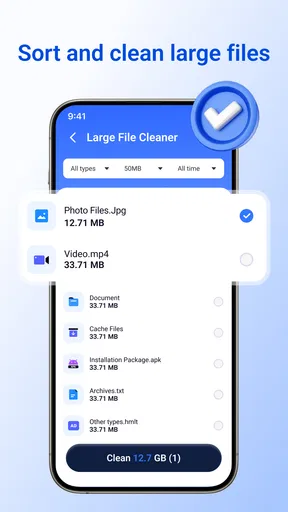
- Supports multiple file types for comprehensive cleaning.
- Regular updates to improve performance and features.
Cons
- Some features require in-app purchases.
- Occasional ads can disrupt user experience.
- Limited functionality on older devices.
- Initial scan may take some time to complete.
- May occasionally misidentify important files.
FAQs for Junk Eraser - Storage Manager
What is Junk Eraser - Storage Manager, and how does it work?
Junk Eraser - Storage Manager is an app designed to optimize your device's performance by removing unnecessary files, such as cache, temporary files, and other digital clutter. It scans your device to identify these files and offers a simple way to delete them, freeing up storage space and improving speed.
Is Junk Eraser - Storage Manager safe to use?
Yes, Junk Eraser - Storage Manager is safe to use. It only targets junk files that do not affect your personal data or important system files. The app ensures that essential data is preserved while optimizing your device's storage and performance.
Does Junk Eraser - Storage Manager support both Android and iOS devices?
Junk Eraser - Storage Manager is available for both Android and iOS platforms. The app is designed to work seamlessly on both types of devices, providing users with a consistent experience in optimizing their storage and performance.
Will using Junk Eraser - Storage Manager improve my device's battery life?
While the primary function of Junk Eraser is to clear storage space, it can indirectly help improve battery life. By reducing the number of unnecessary files and optimizing system performance, your device may use resources more efficiently, potentially extending battery life.
How often should I use Junk Eraser - Storage Manager to maintain optimal performance?
For best results, it's recommended to use Junk Eraser - Storage Manager regularly, such as weekly or bi-weekly, depending on your device usage. Regular cleaning helps maintain optimal performance by ensuring that junk files do not accumulate and slow down your device.


